
TechBy Dave Angelo D. Jimenez
Keeping Hands on the Keyboard with Modal Editing
Have you ever heard of modal editing before? Perhaps you may have heard of it from someone who used a text editing tool called Vim. Or how it can make you blazingly fast at text editing while being ergonomic. What differentiates it from your typical modern day text editing software like Notepad or MS Word? To find out, let's identify what problems it can solve.
When we edit text, the modern day person would use the mouse and keyboard in conjunction. The mouse functions as the tool for navigation while the keyboard inputs the text. While editing our texts, we can click on any part of the text to place the cursor down and perform character inputs using the keyboard. To navigate to a different section of the text, simply move the mouse to the location. To select a group of texts, just drag the mouse over the texts. It's an intuitive combination of tools, and it's hard to think of a better way to navigate and edit texts. But there is a better alternative to text editing; one that eliminates the need for the mouse and all of your text editing needs are accessible on the keyboard without lifting your hands away from it.
But why do we need to eliminate the mouse? The mouse is a good intuitive tool. It serves its purpose well as our main form of navigation not just in text editing but also our desktop in general. However, while text editing, you may not notice it, but we are experiencing overhead in our text editing workflow every time we use the mouse. Our hand requires moving from one position to another. It's a simple motion that we take for granted, but one that takes a subtle mental toll when it feels like we're just rummaging through pieces of text unintelligently. For software like Blender and Photoshop, the mouse and keyboard is fine as it's necessary to edit 3D models and Images. The difference is that your hands are always on both the mouse and keyboard, barely lifting your hands away from them. The mouse and keyboard for text editing on the other hand requires your hand to constantly switch positions from mouse to keyboard. This motion consumes time and effort. The mouse and keyboard setup is not optimized for text editing at all, but it has an extremely low barrier of entry.
Now that we have identified that the main problem is the motion from mouse to keyboard, what alternative solution does modal editing offer that could replace the navigational capabilities of a mouse? As the name implies, it will be modes.
Text editors like notepad and MS Word are what we call non-modal editors, and we can only insert characters to it. Modal editors on the other hand can not only insert characters, but also navigate, select, and perform various different functions.
One of the most popular modal editors is Vim. It's an old piece of software published in 1991, way before graphic user interfaces were made. Those new to Vim see it as this scary looking bare-bones editor where exiting is almost impossible without shutting down the computer forcefully. It's incredibly old and obscure yet so many people still love it due to the modal editing features it offers out of the box.
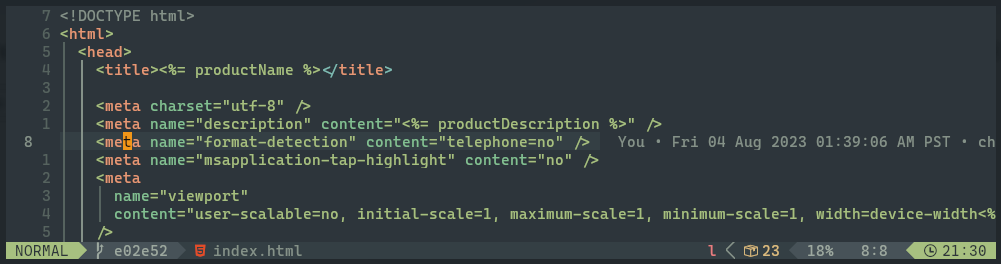
Let's break down how modal editors work. Modal editors work by being able to switch between modes while editing. For Vim, these are the normal mode, insert mode, visual mode, and command mode. The normal mode is used for navigating the text. Each text is treated as an object that the cursor in normal mode can jump to in various ways. Moving the cursor is all done on the keyboard, where the basic up, down, left, and right moves are assigned to h, k, j, and l, respectively. You can navigate to the beginning or end of a word. You can search for a word and easily go back and forth between the captured words.
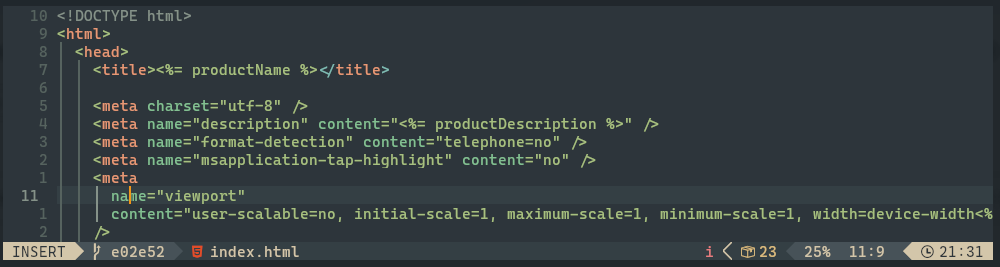
In insert mode, text can be inserted like how a normal non-modal editor allows you to do.
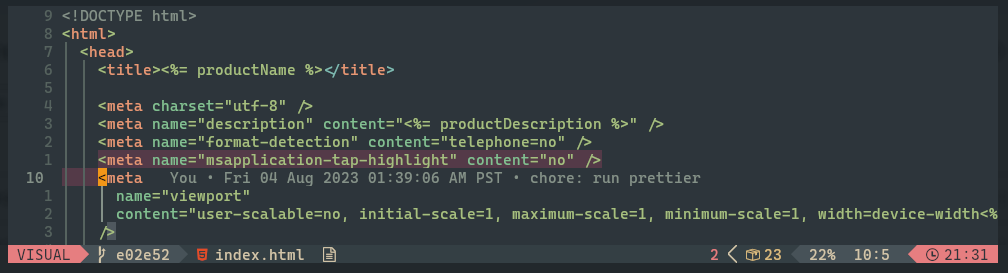
Visual mode allows the selection of text. It is used in conjunction with normal to move the cursor.
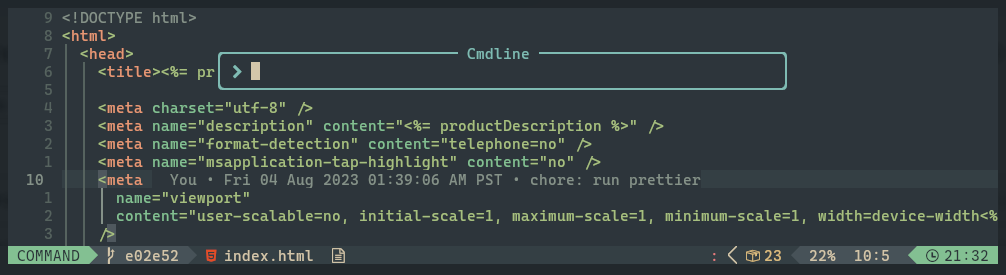
Lastly, command mode allows the execution of commands that are not included or available in normal mode, such as saving and exiting the file.
You can switch from normal mode to insert mode and visual mode in various ways using one key or a combination of keystrokes. From any mode, you can return to normal mode by pressing the escape key. I know that it's odd to edit in this method, but I assure you, there is a reason why modal editing is so loved mainly in the form of Vim. The only caveat with modal editing is its steep learning curve and most people ditch it before truly unlocking its potential to increase your productivity. It also requires muscle memory but just like riding a bike, once you can get it to stay upright, you can keep it upright every time. Modal editing just requires a bit of your time for it to increase your productivity significantly.
Now you may be wondering how I've been referring to Modal editing rather than Vim. I'm not trying to sell you Vim. I just think that Modal editing is such a game changer and more people should know about it and try it at least for a week. Vim isn't the only modal editor out there either. There's Kakoune, Helix, and Neovim. If a dedicated modal editor isn't to your liking, you can try out the Vim extension from Visual Studio Code. If you dig deeper into your everyday software, you may just find out that it has an extension for Modal editing in the form of Vim-bindings.
Give modal editing a try at least for a week after the muscle memory has set in. Once you've experienced its benefits, you'll never want to go back to non-modal editors ever again.
References
- Freepik, “Hands on keyboard”. Accessed via Freepik Website